IBO Player setup guide for StreamMo
Everything needed to get from a fresh subscription to a full channel list: installing the app on each supported platform, registering the playlist, and the handful of settings that make the interface behave.
On this page
- What IBO Player is good and bad at
- Installing on Android phones and boxes
- Installing on Windows
- Installing on Amazon Fire TV Stick
- Installing on macOS
- Installing on LG and Samsung TVs
- Adding your StreamMo playlist
- Tuning the Live TV section
- Understanding the settings menu
- Setup questions and answers
StreamMo delivers its lineup through IBO Player, and only through IBO Player. It is not the flashiest IPTV application in existence, but it installs on almost every platform including non-Android smart TVs, the playback is smooth, and the interface stays out of the way. If you have just ordered from the checkout page, this is the only document you need.
What IBO Player is good and bad at
Every application has trade-offs, and it is fairer to state them up front than to discover them after paying.
It installs on almost any device — good
IBO Player is published for every mainstream operating system, from Android through to Linux, and the developer's site provides a direct download for each platform. That breadth is unusual.
A genuinely good choice for non-Android smart TVs — good
The biggest obstacle in IPTV is the smart TV that does not run Android. Those closed operating systems discourage developers, so very few IPTV players exist for them. IBO Player is published directly in the LG and Samsung stores, which solves the problem outright.
It cannot record anything — bad
There is no recording function at any level. Not everyone uses recording, but its complete absence is a real limitation compared with other players on the market.
There is no multi-screen mode — bad
You cannot watch two feeds side by side. Given that a StreamMo subscription authorises one device at a time anyway, this matters less here than it would elsewhere.
Playlists are activated remotely — a quirk
Most IPTV apps let you type the server address, username and password directly into the app. IBO Player does it differently: you register the playlist on the IBO web portal and the app collects it from there. It is one extra step the first time, and afterwards it is invisible.
The app carries its own licence fee
IBO Player gives you a five-day evaluation period, then asks for a licence — €5 for a year or €10 for life. That payment goes to the app developer, not to StreamMo, and it is the only cost outside your subscription.
Installing IBO Player on Android phones, tablets and boxes
Android installation
- Download the installation file from the IBO Player official website or from the download link your support agent provided.
- Android will warn you that the file comes from outside the Play Store. The file is safe — choose Download anyway.
- Open the downloaded file.
- Select Install.
- Once installation finishes, open the app.
- An introductory screen appears the first time explaining what to do next. Playlist registration is covered further down this page — for now, select OK.
- The dashboard loads and the app is ready.
Installing IBO Player on Windows
Windows 10 and Windows 11 (64-bit)
- Download the Windows installer. Note that only Windows 10 and above are supported, and the build is 64-bit.
- Windows Security will interrupt because the file did not come from the Microsoft Store. Select More info.
- Select Run anyway to continue.
- Select Next.
- Tick the desktop-shortcut box if you want one, then Next.
- Select Install to finish.
- Select Finish to launch IBO Player.
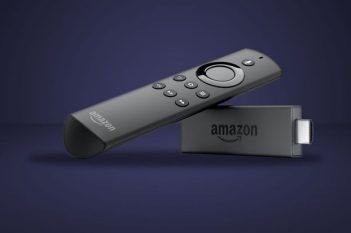
Installing IBO Player on Amazon Fire TV Stick
Fire TV Stick — the long one, but only once
- From the Fire TV dashboard, move to the magnifier icon, then down into the search field, and press OK.
- You first need the Downloader app, which allows side-loading. Type D on the virtual keyboard; Downloader appears as the first suggestion. Select it and press OK.
- Select the app to begin installation.
- Choose Download.
- Allow media access when prompted.
- Once Downloader opens, move to the address field above the yellow Go button and press OK.
- Enter the official Downloader code for the IBO Player Android build — 511693 — and select Go.
- The download begins from the official site. Leave it alone until it completes.
- Wait for the progress bar to finish.
- Amazon blocks the install because the file is from outside its store. Select Settings.
- Choose Install unknown apps. If you cannot see that section, go to About and press OK seven times to reveal Developer Options, then return here.
- Select Downloader and press OK so the toggle moves from OFF to ON.
- Continue the installation with the usual Next and OK prompts.
- A first-run message appears. Select OK.
- The app is installed and ready.
Installing IBO Player on macOS
MacBook and iMac
- Open the IBO Player website and download the macOS build from the download section.
- Open the downloaded file and drag the icon into your Applications folder.
- After a few seconds the app is installed. Open Launchpad and select the icon.
- macOS refuses the first launch because the app was not installed from the App Store. This is expected.
- From the Apple menu, open System Settings, scroll to Privacy & Security, and scroll down on the right to the application security section.
- Select Open anyway. The choice is permanent — subsequent launches go straight through.
- The application is ready for playlist registration.
Installing IBO Player on LG and Samsung smart TVs
LG webOS, Samsung Tizen and similar
- Open the LG Content Store (or the Samsung equivalent).
- Select the magnifier icon in the top-right corner.
- Type IBO Player.
- Pick the correct result — several apps carry similar names, so choose the one titled exactly "IBO Player".
- Select Install.
- Select Launch to open it.
- A welcome message appears on first run. Continue to playlist registration below.
Adding your StreamMo playlist
IBO Player uses remote playlist activation: you enter your credentials on the IBO portal, and the app collects them. Here is the sequence.
Registering the playlist
- From the IBO Player website, open Manage Playlist in the top menu.
- You will be asked for a MAC address and a Device Key. Both come from the app itself — see the next step.
- On your device, open IBO Player and select the profile icon on the main dashboard.
- The Device Info panel in the top-left contains both values. Enter them in the portal form and log in.
- You are now in the playlist management area, where the StreamMo account gets added. There are two methods, depending on what we sent you.
Method A — Add Playlist (M3U streaming line)
If your credentials arrived as a single long URL, this is the simpler route.
- Select Add Playlist in the portal.
- Playlist name — any label you like, for example "StreamMo".
- Playlist URL — paste the streaming line exactly as we sent it, with no trailing spaces.
- XMLTV EPG URL — leave this empty. IBO Player then pulls the programme guide from the playlist itself, which is what you want. Fill it in only if you are using a third-party EPG source.
- Protect this playlist — optional. Ticking it lets you set a PIN on the list.
- Select Save.
Method B — Add XC Playlist (Xtream Codes)
If we sent a host, username and password instead of a single line, use this one.
- From the portal dashboard, select Add XC Playlist.
- Fill in the same fields as method A, plus HOST — the server address from your credentials email.
- Save, then close and reopen IBO Player, or use Data Refresh on the dashboard.
Tuning the Live TV section
The default Live TV layout is, frankly, cramped: channel names overflow beneath the preview window and the guide sits crooked. One setting fixes it.
Fixing the layout
- From the dashboard, select the screen icon beside the Wi-Fi sign.
- You are in Live Screen Style. Switch away from the default style to the alternative and save.
- Channel names now have room, the preview window fits properly and the programme guide aligns. Categories are hidden by default in this layout — press the left arrow on the remote (or the back gesture on a touch device) to bring them back.
Favourites and search
- To favourite a channel, press and hold on it in the channel list, then confirm Add. A heart appears beside the name.
- The favourites folder sits at the top of the category column.
- Search is in the bottom-left corner of the Live TV overview and looks across every category. It matches on specific terms, so type the channel name carefully — a wrong combination returns nothing rather than a near match.
Understanding the settings menu
The configuration of the app lives here, and a few of these are worth setting on day one.
- Network — a shortcut into your device's wireless settings.
- Parental control — sets a PIN on the app. The first time, enter
0000as the current password even if you never assigned one. Forgot the PIN later? Reset it from the IBO portal. - Check for updates — lets the app update itself remotely.
- Language — sixteen interface languages, English and French included.
- Application info — version number and licence expiry date.
- Clear cache — the first thing to try when the EPG misbehaves or artwork loads corrupted.
- Manage categories — hide any Live TV, Movies or Series category. The single most useful setting on a large lineup.
- Live TV player — choose between the Android player, EXO Player and VLC. Switching to VLC resolves most stubborn playback issues.
- VOD player — the same choice, applied to films and series.
- Main screen background — twelve backgrounds to pick from.
- Content strategy — load the entire lineup at startup, or load each section only when opened. On slower hardware, choose the second.
- Auto boot on start — opens IBO Player automatically when the device powers on.
- More options — seven extras including stream URL redirection checks, disabling the Live TV EPG, honouring the stream URL extension, forcing M3U format, runtime loading for films and series, and UTF-8 decoding for playlists that need it.
Setup questions and answers
IBO Player runs on all Android devices, macOS computers, Windows 10 and newer, Debian and Ubuntu Linux, and it is published in the content stores of both LG and Samsung televisions. It is the only application StreamMo supports.
No. The application has no recording function of any kind in the current version. If recording is essential to you, that is worth knowing before you order.
The application gives you a short five-day evaluation period after installation, after which the developer asks for a licence — €5 for one year or €10 for a lifetime licence. That fee goes to the app developer and is entirely separate from your StreamMo subscription.
From the IBO Player dashboard, select the screen icon beside the Wi-Fi sign to open Live Screen Style. The default layout crowds channel names under the preview window; switch it to the alternative style and save. Channel names get room, the mini-screen fits, and the guide lines up.
From the channel list, press and hold on the channel you want, then confirm Add. A heart appears beside the name and the channel joins the favourites folder at the top of the category column.
Connect by Ethernet rather than Wi-Fi where possible, restart the router and the device, and clear the IBO Player cache from Settings. If the issue only affects one channel, message support with the channel name so we can verify the feed from our side.
Yes. Settings contains a Manage Categories panel that hides any Live TV, Movies or Series category from the interface. It is the fastest way to trim a 15,000-channel lineup down to the couple of hundred feeds you actually use.
Settings lets you switch the Live TV engine between the Android player, EXO Player and VLC, with a separate setting for VOD. If a particular channel stutters, changing the engine to VLC resolves it more often than not.
Still stuck after all that? Message support with your device model and what you see on screen. If you have not ordered yet, the pricing page lists every plan.